

OrcaSlicer , Theo’s feature branch
Active development of UX improvements, new capabilities, and visual polish for OrcaSlicer. These are open-source contributions in various stages of progress, check back for updates, photos, and build instructions as each feature matures.
View fork on GitHubFeatures on this page
- ⚡ CrashSlicer Custom Build
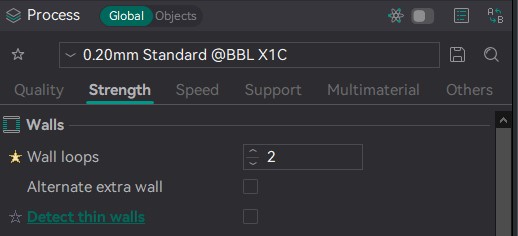
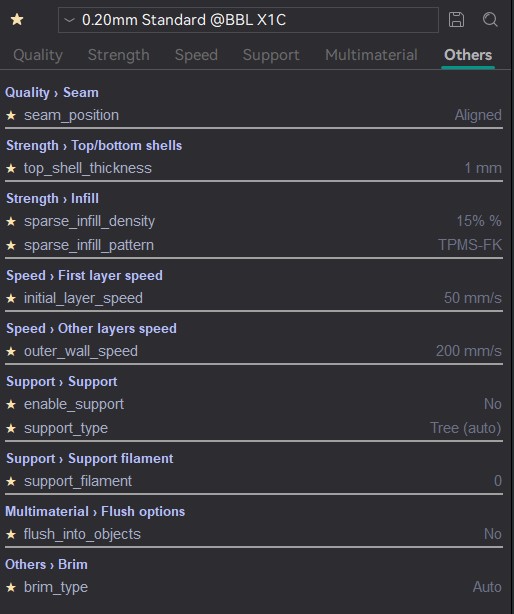
- Favorites panel In Review
- Alt unit display In Review PR Pending
- Slice settings history In Progress
- Animated print status In Review
- Animated tab icons On Hold
- New infill patterns Researching
- Windowed path preview Researching
- Transform tool cycling Researching
- Local version control In Review
- UI color settings In Progress
CrashSlicer
A custom OrcaSlicer build for the CRASH Space community, all features below, plus exclusive extras themed around our space.
CrashSlicer is a pre-built fork of OrcaSlicer bundling all of the feature-branch work on this page into a single ready-to-run application. On top of that, it ships with a custom CRASH Space theme and icon, cutting-edge capabilities not yet in upstream OrcaSlicer, and community-specific quality-of-life improvements. Drop it in alongside your existing slicer, no configuration needed.
Included features
Downloads
Photos
Video
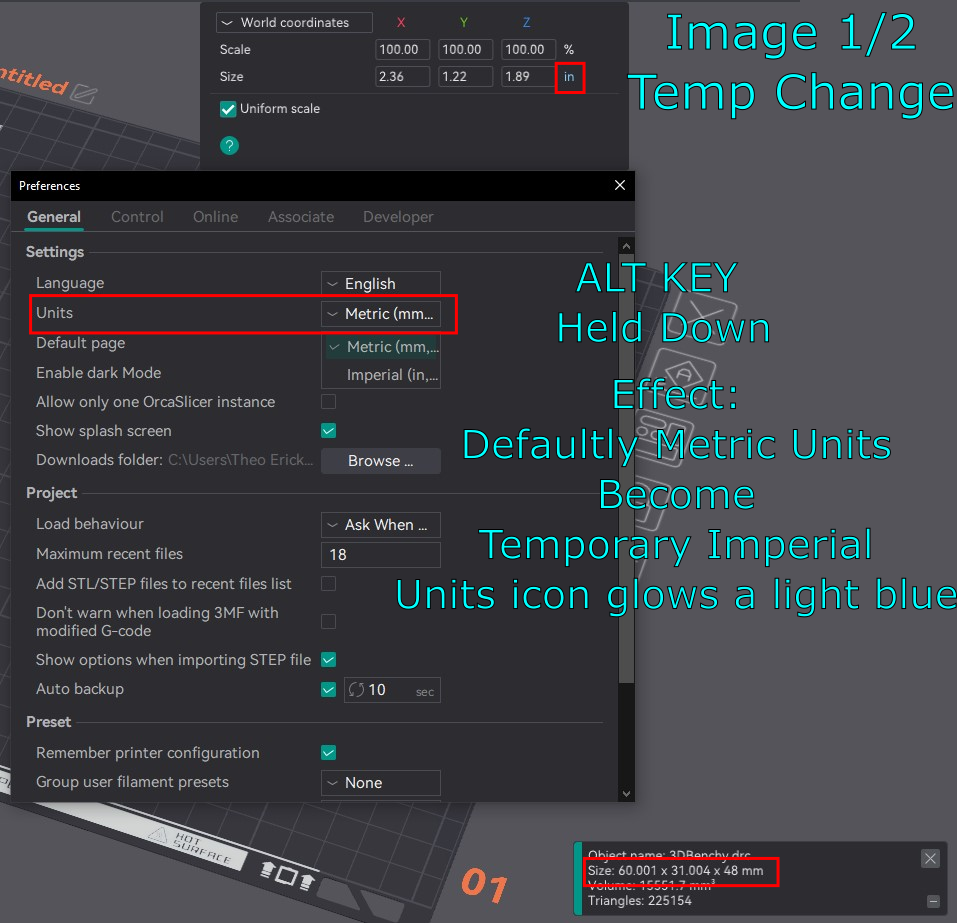
OrcaSlicer works exclusively in metric, which creates friction for users more comfortable with imperial measurements. This feature lets users hold Alt to temporarily swap the entire UI between mm and inches without changing any stored values.
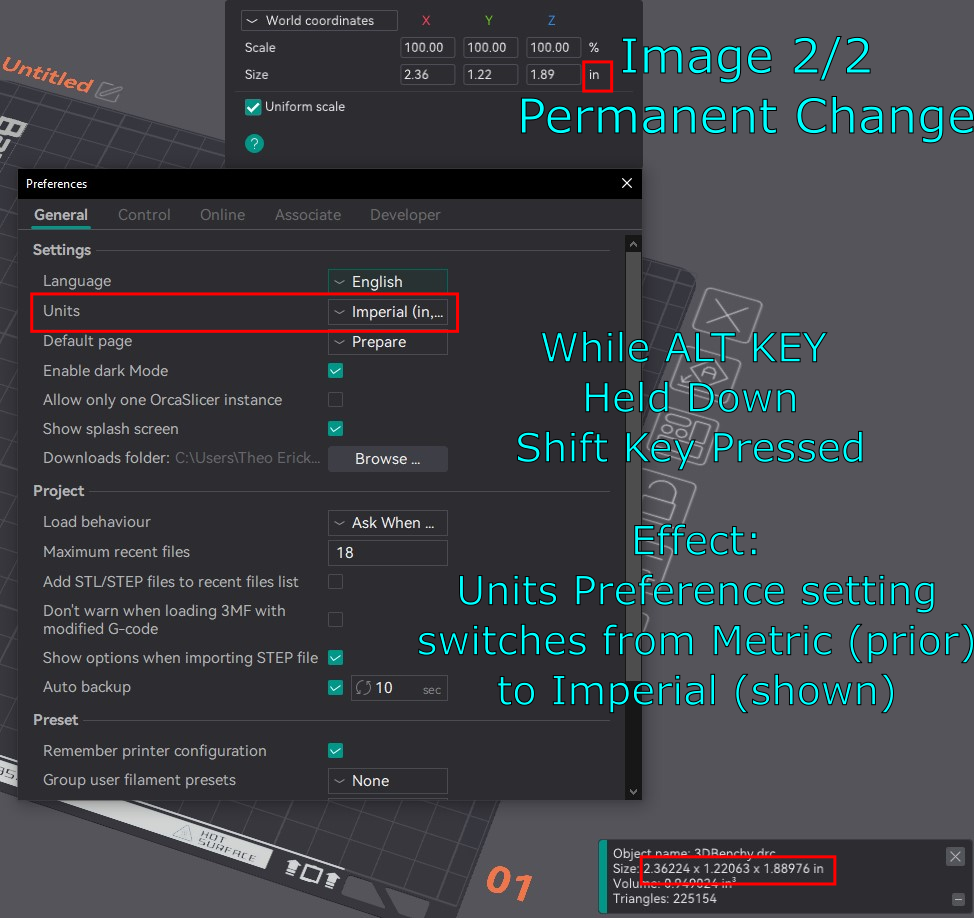
While holding Alt, pressing Shift makes the swap permanent — it updates Preferences and AppConfig using the existing unit-change workflow. Currently active in the Plater’s Move and Scale tools, with expansion to the rest of the UI planned.
The Alt-key preview intentionally does not write to preferences — it is a transient display only, implemented via a UnitSystem singleton and a g_unit_alt_held global flag updated from the GLCanvas3D key handler.
Photos
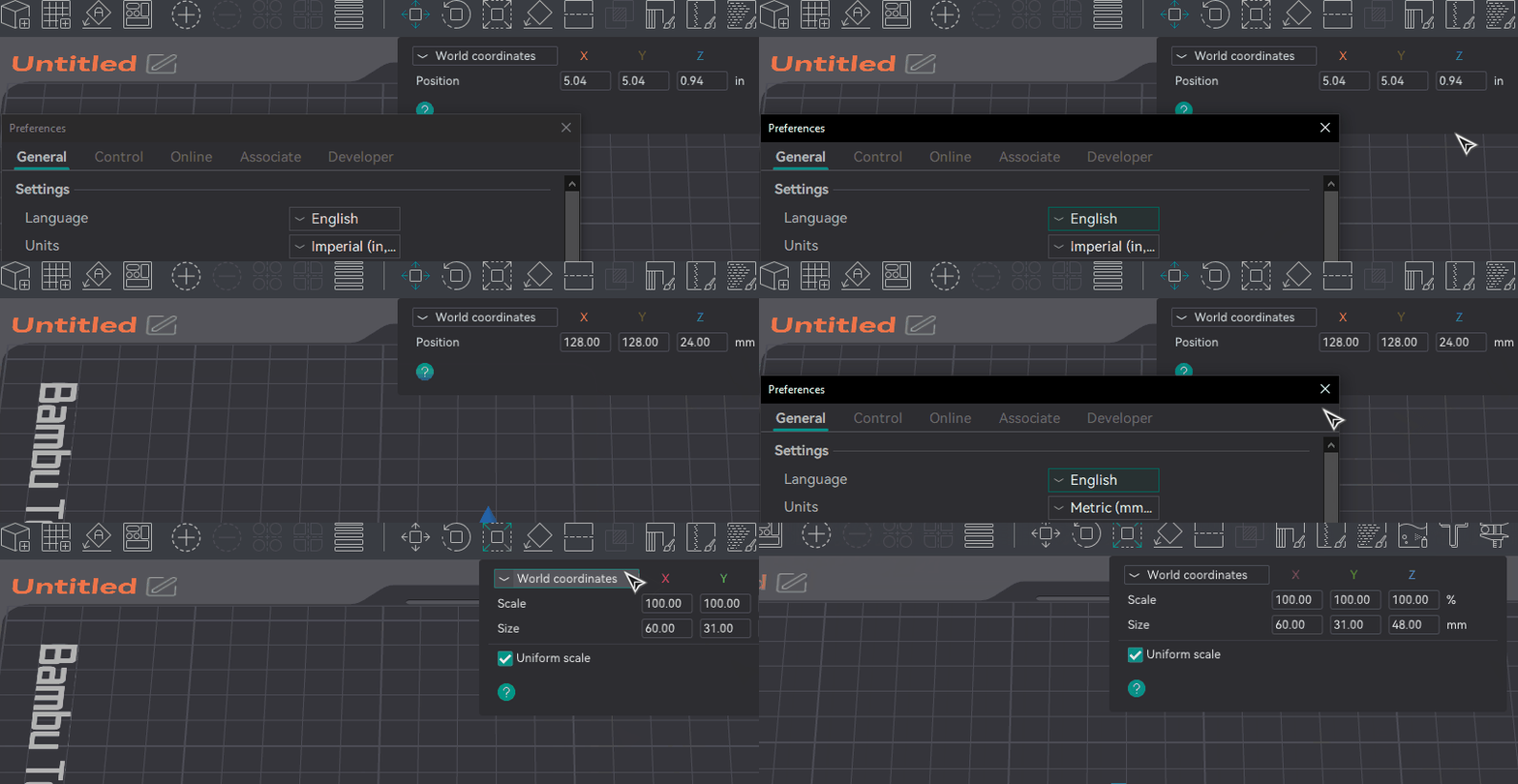
Video
How to use
- Hold
Altto temporarily swap all visible units in the Move and Scale tools. - Release
Altto revert — no settings are changed. - While holding
Alt, pressShiftto make the unit swap permanent.
- 2025-04-01Add in Base Alt Unit UI Functionality + Add Move and Scale Implementation — Allows holding Alt to temporarily swap units from metric to imperial. Alt+Shift permanently swaps units via Preferences/AppConfig. Currently active in the Plater Move and Scale tools.46745f2
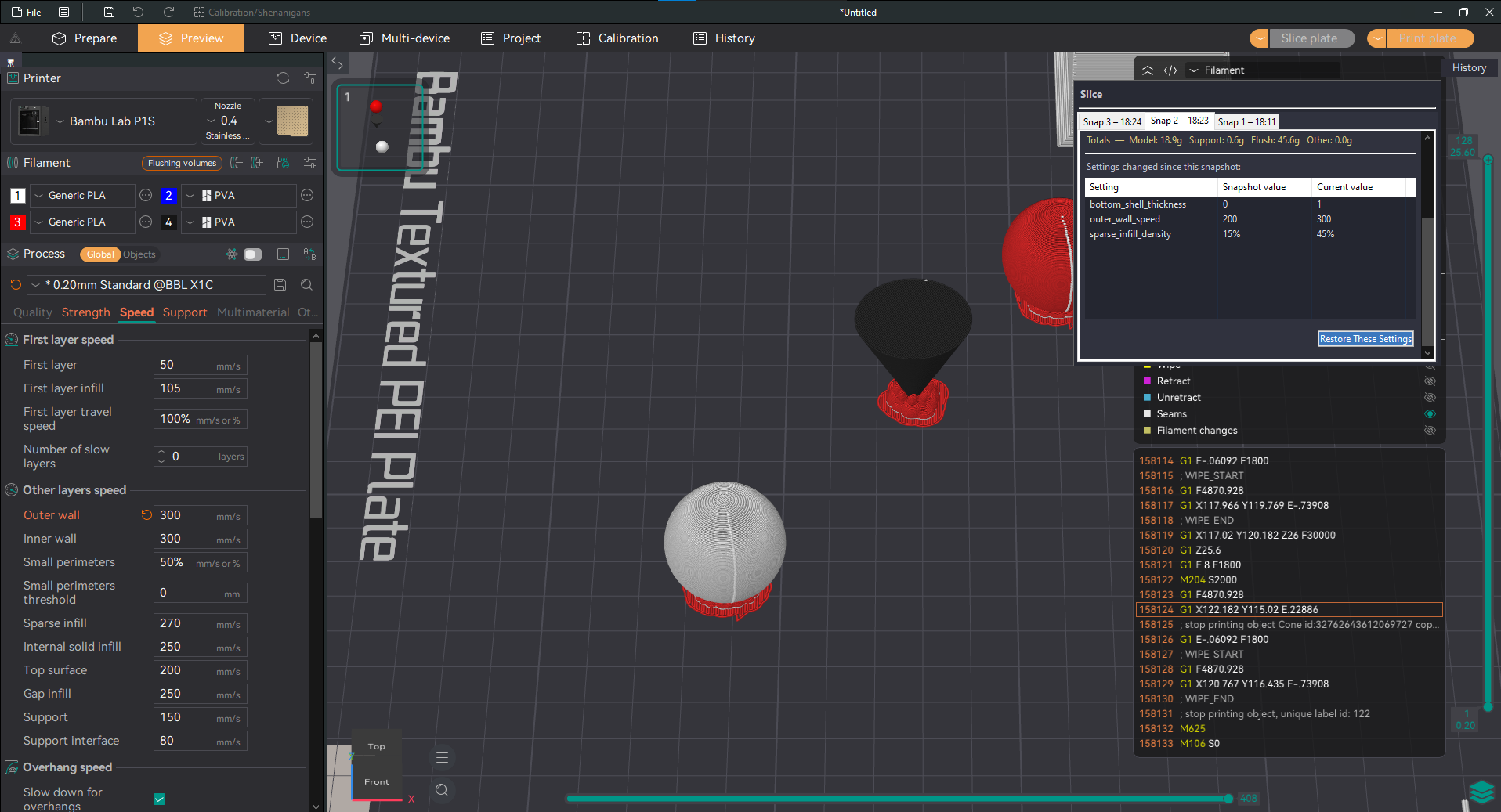
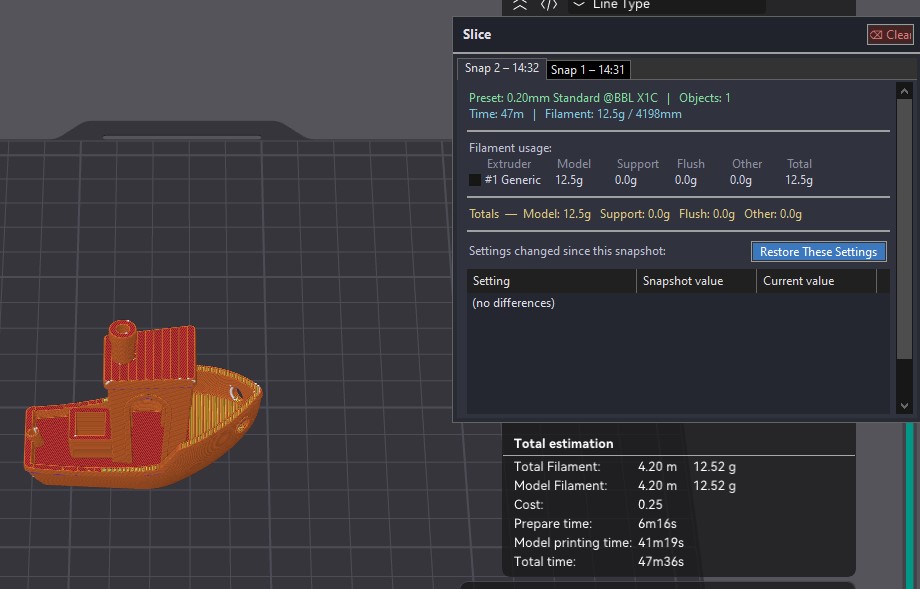
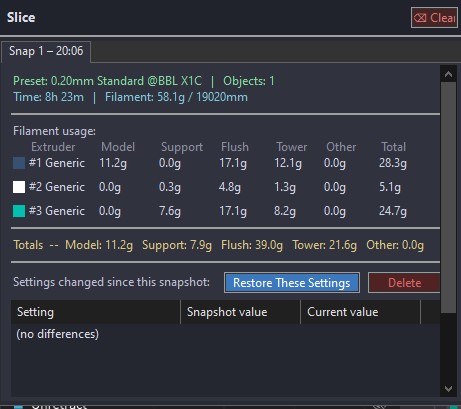
Every time you slice in OrcaSlicer, this feature automatically captures a snapshot of the settings used. A scrollable history panel lets you browse past slices, compare the settings diff between any two snapshots, and restore a previous configuration in one click.
Built as a SliceHistoryPanel (wxScrolledWindow) and SliceHistoryManager with JSON persistence via nlohmann/json. Each snapshot includes a per-extruder filament breakdown and a compact diff view that highlights only the settings that changed.
Photos
Video
How to use
- Slice a print as normal — a snapshot is saved automatically.
- Open the Slice History panel from the sidebar icon.
- Click any past snapshot to see a diff against the current settings.
- Click Restore to apply a snapshot’s settings to the current project.
- TODOAdd changelog entries here.
Replaces the static text status bar shown during slicing with a live animated indicator. Each printer state — idle, slicing, printing, paused, filament change, finished, failed, offline — has its own looping animated SVG icon that plays in the status area in real time.
Implemented using wxTimer-driven frame cycling with custom wxAutoBufferedPaintDC rendering. The animated SVG icons are also exported as GIFs for use in documentation and UI previews. Longer status strings are handled with logic to prevent layout overflow.
Animated status icons
 Idle
Idle Preparing
 Slicing
 Sliced
 Sending
 Calibrating
 Printing
 Paused
 Filament change
 Finished
 Failed
 Offline
Screenshots
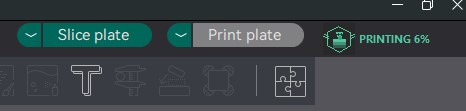



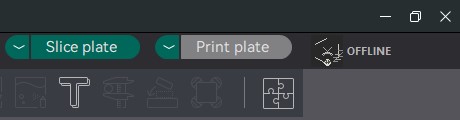
Video
How to use
- Drop-in replacement — the animated status indicator appears automatically when the printer state changes. No configuration needed.
Replaces the flat sidebar tab buttons with smooth hover, press, ripple, and drain-fill transitions. A full AnimatedButton class handles per-button state with interpolated fill values driven by wxTimer.
A TabManager coordinator class ensures transitions are consistent across tabs — when one activates, others drain their highlight simultaneously. Rendering uses wxAutoBufferedPaintDC and wxGraphicsContext for cross-platform alpha compositing.
Photos
Video
How to use
- Drop-in replacement — animations run automatically. No user-facing configuration.
- TODOAdd changelog entries here.
Experimental work adding new infill pattern geometry options to OrcaSlicer’s fill engine. The goal is to expand beyond the existing pattern library with patterns optimised for specific use cases — including improved strength-to-weight ratios for structural parts and patterns that work better with flexible filaments.
Currently in the research phase — patterns are being evaluated for toolpath correctness, over-extrusion at path reversals, and compatibility with the existing wall and perimeter pipeline.
Photos
Video
How to use
- Not yet ready for general use — instructions will be added once patterns pass testing.
- TODOAdd changelog entries here.
A floating animated path preview player for the slice preview screen. A small corner button toggles an ImGui overlay panel with play/pause/scrub controls that animate the toolpath in real time — currently in the research and planning phase.
Two animation modes are planned: XY path mode (traces the nozzle path across a single layer) and layer build-up mode (sweeps upward through layers). Playback will drive GCodeViewer::set_toolpaths_move_range() via a wxTimer tick.
Will be implemented as an ImGui overlay to avoid needing a separate wxFrame OS window, which would cause z-order and focus issues on Windows and macOS.
Photos
Video
How to use
- Not yet available — instructions will be added once implementation begins.
- —No commits yet — feature is in the research phase. Branch link will be added once work begins.
Adds Space and Shift+Space as keyboard shortcuts to cycle forward and backward through the Move, Rotate, and Scale transform tools without touching the toolbar. This shortcut pattern is common in professional 3D software (Blender, Cinema 4D, etc.) and was previously missing from OrcaSlicer.
Planned implementation in on_key_down in GLCanvas3D.cpp with guards that prevent the shortcut from firing when a wxWidgets text input has focus, avoiding conflicts with typing in fields that use the Space key.
Photos
Video
Planned
- Select an object on the build plate.
- Activate any transform tool (Move, Rotate, or Scale) from the toolbar.
- Press
Spaceto cycle to the next tool. - Press
Shift+Spaceto cycle to the previous tool.
- —No commits yet — feature is in the research phase.
An OrcaSlicer-native version control system for 3MF project files. The History Panel automatically saves full 3MF snapshots of your project at configurable intervals, letting you roll back to any prior state with a single click — like “undo” that persists across sessions.
A dedicated Backup Storage Location menu lets you see where backups are saved, change the folder, open it directly in your file manager, and migrate existing backup files when switching locations.
Photos
Video
How to use
- Open the History Panel from the sidebar.
- 3MF snapshots are saved automatically — no manual action needed.
- Click any snapshot to preview its settings.
- Click Roll back to restore that snapshot as the current project.
- To change where backups are stored, open the Backup Storage Location menu from the panel header.
- 2025-03-31Add in Backup Storage Location Menu — See backup storage location, change it to another folder, open the folder directly, and migrate backup files on folder switch.f5ca809
- 2025-03-29Add In Local Version Control Functionality To History Panel — Full 3MF snapshot saving and rollback integrated into the History Panel.1645ad9
- 2025-03-26Add in First Pass Of Print History Tab — Adds a new main tab tracking recently loaded projects and recently generated G-code. Foundation for version control and recent work panel.fd35acb